


Summary
- Explains how Shopify reporting works and where to find core reports in the Shopify admin.
- Describes main report categories, key ecommerce metrics, and how different Shopify plans affect reporting access.
- Outlines how to build custom reports, export data, and benchmark performance using Shopify tools.
- Discusses limitations in native Shopify reporting and when to consider custom or third-party analytics.
Why Shopify Reporting Matters for Your Business
Shopify reporting gives you visibility into every part of your e-commerce business, from sales and inventory to customer behavior and marketing performance. Here's what you need to know:
Quick Overview:
- Access reports: Shopify Admin > Analytics > Reports
- Main report types: Sales, Finance, Behavior, Marketing, Customer, and Inventory
- Key metrics: Total sales, Average Order Value (AOV), conversion rate, Customer Lifetime Value (LTV), Customer Acquisition Cost (CAC)
- Plan differences: Basic plans offer limited reports; Advanced and Plus open up custom reports, profit tracking, and cohort analysis
- Real-time updates: Most data refreshes within one minute
- Export options: CSV format for analysis in Excel or Google Sheets
Around one million businesses use Shopify reporting to track performance, spot trends, and make faster decisions. Your store generates data every day—sessions, orders, cart abandonments, payment transactions—but that data only becomes useful when you know how to read it and act on it.
Shopify's native analytics dashboard and reports give you a clear picture of what is working and what is not. You can see which products are selling, where your traffic comes from, how customers move through your site, and whether your marketing spend is paying off. The platform presents this information in charts and tables that update in real time, so you can respond quickly when something changes.
The challenge most store owners face is not a lack of data. The hard part is knowing which metrics matter and how to use them. A spike in sessions means nothing if your conversion rate drops. High revenue might hide shrinking margins if you're not tracking cost of goods sold. And without cohort analysis, you will not know if your new customers are coming back or disappearing after their first purchase.
Different Shopify plans offer different levels of reporting. Basic plans give you access to overview dashboards and finance reports, while Advanced and Plus plans add custom reports, profit tracking, and advanced customer segmentation. Knowing what is available at each level helps you decide when to upgrade or when to bring in external tools.
Here at First Pier, we have worked with brands like Wyman's Blueberries and Hyperlite Mountain Gear to build reporting systems that go beyond Shopify's native features. Over the past two decades, our team has helped hundreds of store owners use Shopify reporting to find growth opportunities, cut wasted ad spend, and make data-driven decisions that improve the business.
This guide walks through every major report type, explains what each metric means, and shows you how to use raw data. We also cover when Shopify's built-in tools are enough and when you need something more.
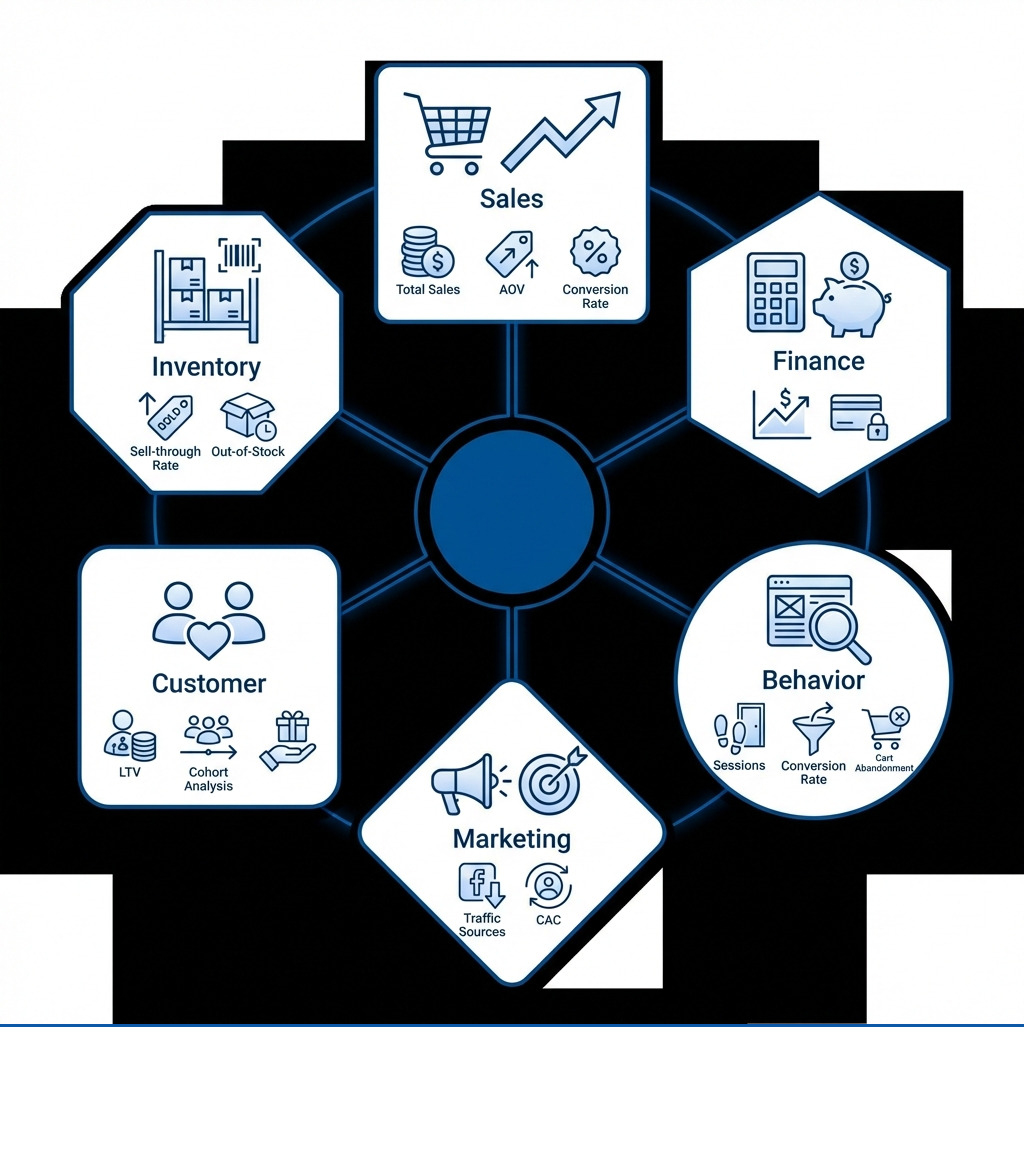
Quick shopify reporting definitions:
Introduction to Shopify Analytics and Reports
Shopify reporting and analytics are tools that let you review your store's recent activity, get to know your visitors, analyze your web performance, and examine your transactions from a single dashboard and reporting area. These reports are compilations of your store's data, displayed in both graph and table formats, organized into categories based on their subject. This structure helps you quickly grasp what is happening and make informed decisions about your e-commerce business.
You can find all your Shopify reports within your admin dashboard. Go to Analytics > Reports. It is a direct path to the data you need. Staff members need specific "Analytics" permissions to view these reports and dashboards, which keeps access to sensitive data under control.
The Analytics dashboard is your central hub for quick summaries. It is a customizable collection of data cards, known as metrics, each showing a quick sum or value about a particular business indicator. Think of metrics like "Net sales by channel" or "Sessions by device type". From each card, you can go straight to a more detailed, related report. This dashboard also includes a "Live View", which shows real-time monitoring of your store's performance, with dynamic metrics, geographic data, and visualizations as sales come in during flash sales or promotions. This real-time view makes it easier to spot changes in performance as they happen and act on them.
A Breakdown of Key Shopify Report Categories
Shopify organizes its reports into distinct categories, each designed to answer specific business questions. Understanding these categories and the metrics they provide is the first step to making sense of your store's data.
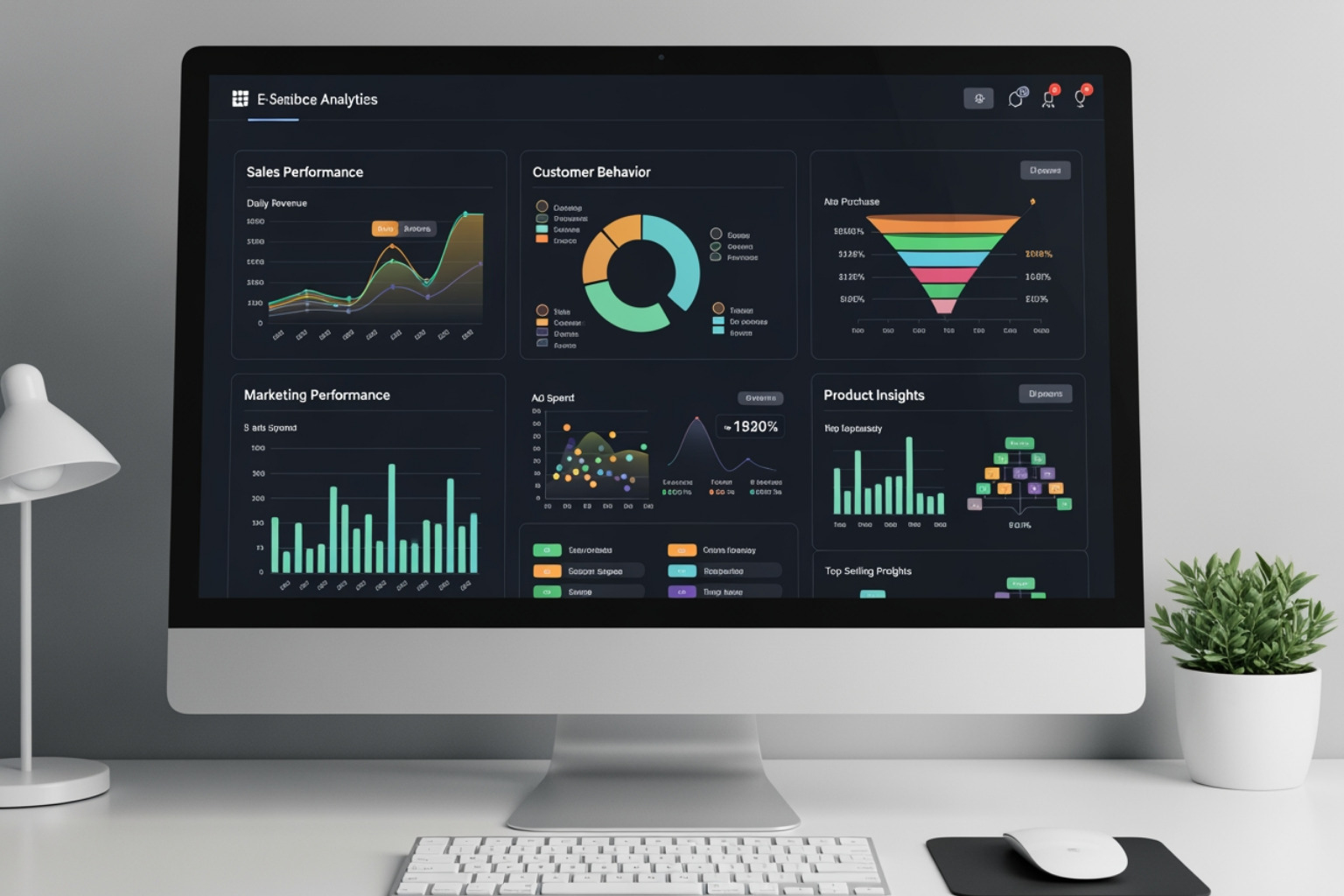
Understanding Sales Reports
Sales reports are fundamental for any e-commerce business. Their purpose is to track your revenue performance across various dimensions like products, time periods, and sales channels.
Key metrics you'll find here include:
- Total sales over time: Displays the number of orders and total sales over a chosen period.
- Total sales by product/variant/vendor: Helps identify your best-selling items and suppliers.
- Sales by discount codes: Shows the effectiveness of your promotions.
- Total sales by sales channel/referrer/billing location: Reveals where your sales are coming from and customer demographics.
- Average Order Value (AOV) over time: Measures the average amount spent per order.
These reports provide information you can act on. For example, if you notice a hero product frequently runs out of stock, sales reports will highlight lost revenue, which is your cue to adjust safety stock levels or negotiate faster replenishment cycles with suppliers. Similarly, if a specific discount code leads to a high volume of sales but a low AOV, it may be time to re-evaluate its profitability.
Sales reports focus on the value of goods included in a sale, not the actual money moving between you and your customers. They reflect the order date, whereas payment reports track when money is captured. This distinction can cause slight differences between sales and payment figures, especially if there is a delay between an order being placed and the payment being processed. Most sales report data updates within about one minute, though the "Sales by discount codes" report can take 12-72 hours to reflect new sales.
Navigating Finance Reports
Finance reports give you a clear picture of your store's financial health, which is essential for accurate bookkeeping and financial planning.
The main finance reports include:
- Finance Summary: An overview of sales, payments, gift cards, tips, and gross profit data.
- Total sales breakdown: Provides values for bookkeeping, such as gross sales, net sales, discounts, and taxes.
- Taxes report: Offers a detailed summary of sales and tax information, particularly useful for US sales tax reporting by state and jurisdiction.
- Payments reports: Detail payments by gateway, showing how customers are paying.
- Gift cards and store credit reports: Track store credit transactions, net sales from gift cards, and outstanding gift card balances.
When a gift card is sold, it is treated as a liability and appears in the "Net sales from gift cards" and "Payments" finance reports, but not in general sales reports. When a customer uses a gift card for a purchase, the full value of the item is then counted as sales. This accounting detail helps you accurately track liabilities and revenue. Discrepancies between sales and payments finance reports can arise if orders are placed but payments have not been captured, or if the order date differs from the payment capture date.
Analyzing Behavior and Customer Reports
These reports help you understand who your customers are and how they interact with your store.
Behavior reports show how visitors move through and engage with your store. Key metrics include:
- Top landing pages and product page views.
- Cart additions and abandonment rates.
- Store search terms.
- Checkout behavior.
Shopify's behavior reports are useful for spotting where customers might be struggling. For example, if you see a high bounce rate on a "summer essentials" landing page, and store search data shows that customers are looking for "linen shirts" that are not clearly listed, you know to adjust the page layout or product display. These reports make it easier to see exactly where customers are dropping off—whether it is on a product page, in the cart, or during checkout—so you can pinpoint and fix friction points.
Customer reports help you understand your customer base and loyalty. Key metrics include:
- First-time vs. repeat customers.
- Customer Lifetime Value (LTV).
- Average purchase frequency.
- Geographic distribution.
- Cohort analysis (available in higher plans).
By examining customer reports, you can analyze repeat purchase rates and identify customer cohorts. If a 90-day cohort repurchase rate slips, it is a sign to use post-purchase email sequences or loyalty programs to bring those customers back. Understanding customer behavior is central to improving conversion rates and encouraging repeat business.
Measuring with Marketing and Inventory Reports
Effective marketing and solid inventory management are critical for business growth. Shopify's reports in these categories provide the data you need to make informed decisions.
Marketing reports help you evaluate the effectiveness of your campaigns and ad spend. Key metrics include:
- Sales attributed to campaigns.
- Sessions generated from each source.
- Conversion rates by campaign.
- Customer Acquisition Cost (CAC) and Return on Ad Spend (ROAS).
For instance, if you find that 65% of new sessions come from Instagram but convert at 0.8% compared to Google Ads at 2.1%, you know you need to refine your Instagram approach. Similarly, if a Google Shopping campaign has strong traffic but a low ROAS, while Klaviyo email flows produce much higher ROAS, that is a sign to move some ad spend and improve your paid media work. These reports are essential for measuring campaign performance and making grounded decisions about ad spend.
Inventory reports are vital for managing stock levels and preventing stockouts, which can lead to lost sales and frustrated customers. Key metrics include:
- Inventory on hand by SKU.
- Bestsellers vs. slow movers.
- Days of inventory remaining.
- Stockouts and inventory adjustments.
If a hero product runs out of stock multiple times in a short period, inventory reports quickly show this issue. This should prompt you to adjust safety stock levels, negotiate faster replenishment cycles with suppliers, or stagger promotions to avoid future stockouts. Used well, inventory reporting helps you keep the right stock levels and make sure you have popular products available for your customers.
Advanced Shopify Reporting and Customization
As your business grows, your data needs become more complex. Shopify's reporting capabilities grow with your business, with different features available depending on your subscription plan.
How Shopify Reporting Varies by Subscription Plan
Shopify's reporting capabilities differ across its subscription plans. While the main analytics dashboards are generally available to all merchants, more detailed information and customization options come with higher-tier plans.
Here is a general breakdown:
| Shopify Plan | Available Reports |
|---|---|
| Basic Shopify | Overview Dashboard, Finance Reports, Limited Product Reports |
| Shopify (Standard) | Adds Sales, Behavior, Marketing, and basic Customer Reports |
| Advanced Shopify | Opens up Custom Reports, Profit Reports, Inventory Forecasting, advanced cohort analysis |
| Shopify Plus | Full suite including advanced cohort analysis, APIs for custom data extraction, more detailed operational information, more extensive custom reporting |
Basic Shopify plans provide a good starting point, but they can create blind spots for fast-growing brands. To access more advanced features like custom reports, cohort analyses, or profit reports that automatically include your Cost of Goods Sold (COGS), upgrading to the Shopify, Advanced Shopify, or Shopify Plus plans becomes necessary. The Advanced and Shopify Plus plans offer the most complete set of analytics, with richer datasets for detailed analysis.
Creating Custom Reports with ShopifyQL
When pre-built reports do not fully answer your specific business questions, you can modify them or create your own custom reports from scratch. This means adding metrics and dimensions to get more specific information from the data.
This is where ShopifyQL comes in. It is Shopify's query language, designed specifically for commerce. ShopifyQL is available in every report, so you can shape data queries to your exact needs. If you are not comfortable with writing queries, Shopify also offers Sidekick, their AI assistant, to help write these custom queries. This ability to query data directly gives you a lot of flexibility to get the exact information you are looking for.

Benchmarking and Exporting Your Data
Beyond internal analysis, Shopify also helps you understand how your store performs relative to others. Shopify's data from across its platform allows you to benchmark your store's performance against similar businesses on Shopify. This gives you context and helps you see where you might be ahead or behind.
For more detailed analysis or to combine Shopify data with other tools, you can export reports. To do this, open the report in your Shopify admin, click "Export" in the top-right corner, choose your preferred format (CSV or Excel), select the data scope (current page or full report), and download the file. This allows you to use tools like Excel or Google Sheets for deeper analysis, or to send the data into broader business intelligence platforms. Shopify also gives access to your data through its API or through analytics integrations available in its app store.
Best Practices for Analyzing Your Shopify Data
Analyzing Shopify reporting data should be a planned activity, not a data-drowning exercise. Here are some best practices we follow here at First Pier to use raw data to make better business decisions:
How to Analyze Reports Without Getting Overwhelmed
The key is to avoid getting lost in the sheer volume of data.
- Focus on key metrics: Do not try to track everything. Instead, focus on 6–8 Key Performance Indicators (KPIs) that line up with your current business priorities. For a newer brand, acquisition and Customer Acquisition Cost (CAC) might be most important. For a mature brand, retention, LTV, and margin matter more.
- Start with built-in reports: Shopify's pre-built reports are useful for initial analysis. They help you quickly spot issues or opportunities.
- Visualize what matters: Use simple dashboards to show key data, with a tight set of executive KPIs. Building 3–4 clear dashboards is more useful than creating 20 that nobody reviews.
- Use trends to stay ahead: Combine historical seasonality with current data to make proactive adjustments. This helps you anticipate changes instead of only reacting to them.
- Real-time monitoring: Keep an eye on real-time data updates in your dashboard and across reports. This steady monitoring helps you make timely decisions in response to changes in performance.
Limitations of Native Shopify Reporting
While Shopify's native reporting is strong, it does have limits, especially as a business grows or needs more specialized information.
- Lack of true profit reporting: Without manually entering Cost of Goods Sold (COGS), native Shopify reports cannot give a full profit report. That usually means calculating profit margins outside of Shopify.
- Cross-channel attribution challenges: Understanding the full customer journey across all marketing channels can be hard with Shopify's default attribution models.
- Data silos: If you are using other platforms like Klaviyo for email, Google Ads, or Meta Ads, bringing all this data together into a single view can be difficult within Shopify alone.
- Manual exports become a bottleneck: For businesses with a high volume of orders, manual report exports become inefficient, time-consuming, and prone to errors. This can slow decision-making and stop you from seeing the full picture.
When to Consider Custom Analytics Solutions
When the limits of native Shopify reporting start to create blind spots or slow down decisions, it is time to look at custom analytics.
- If manual exports are taking a lot of time, or if you need to combine data from many sources (Shopify, CRM, marketing platforms, ERP) into a single view, then an Extract, Load, Transform (ELT) approach may be a better fit.
- These setups automate data flows, send data to a central data warehouse, and clean and organize it for analysis. This allows for automated ingestion, change, flexible scheduling, and enterprise-grade security.
- The benefits include single-source reporting, accurate blended CAC calculations, advanced LTV models, and near real-time financial forecasts. This level of integrated data means you can focus on analysis instead of data prep.
- Here at First Pier, we help brands plan and build custom analytics and reporting systems that work around these limits. We build setups that provide a single source of truth for all your sales, marketing, customer service, and inventory data, so you can see the full picture and move from guessing to understanding your business performance.
Frequently Asked Questions about Shopify Reporting
What is the main difference between Sales and Finance reports in Shopify?
The main difference lies in what they track and when. Sales reports track the value of goods included in an order, based on the order date. They show the value of products sold, not the money received. Finance reports, on the other hand, track the movement of money, based on the transaction or payment capture date. This means that if a customer places an order in May but the payment is captured in June, the order will appear in May's Sales report, but in June's Payments finance report. These reports provide distinct but complementary views of your business's revenue and cash flow.
Can I get profit reports on the Basic Shopify plan?
No, you cannot get comprehensive profit reports that automatically factor in Cost of Goods Sold (COGS) on the Basic Shopify plan. Basic plans offer an overview dashboard, finance reports, and limited product reports, which provide sales and finance data. To access profit reports, which give you a clearer picture of your net margins by automatically deducting COGS, you would need to upgrade to at least the Advanced Shopify plan or Shopify Plus. On a Basic plan, calculating your true profit would require manual calculations outside of Shopify.
How often is the data in Shopify reports updated?
Most Shopify reports update in near real-time, typically within about one minute. This allows for continuous monitoring and quick reactions to changes in store performance. However, there are exceptions; for instance, the 'Sales by discount codes' report can sometimes take 12–72 hours to reflect new sales data. If you need the absolute latest data, you can usually reopen or refresh a report to display the most current information available.
Conclusion: Turning Data into Growth
Regular review of Shopify reporting is not just good practice; it is essential for understanding your business performance and staying competitive. The goal is to use this data to take action that protects your margins, refines your marketing, and supports long-term growth. One merchant, for example, used Shopify's analytics and reporting to identify best sellers and sales trends and grew revenue year over year by 50% during the Christmas season.
Here at First Pier, we help brands build data-driven reporting systems that go beyond basic information. For help with your Ecommerce Data Analytics and analysis, contact our team.





.png)
.png)

